
To import a list into MemoCard.io, copy it as text (one card per line, a separator between the word and its answer), then paste it into "Import a list" and specify that separator. It works with a list exported from Quizlet, but also with any list you've already typed somewhere else. Here's how to do it, step by step.
In short
- Expected format: one line per card, for example the weather = la météo.
- Choose a separator that doesn't appear in your cards (= or ; for example).
- In the app: Import a list → paste → choose the separator → Save.
Importing a list from Quizlet
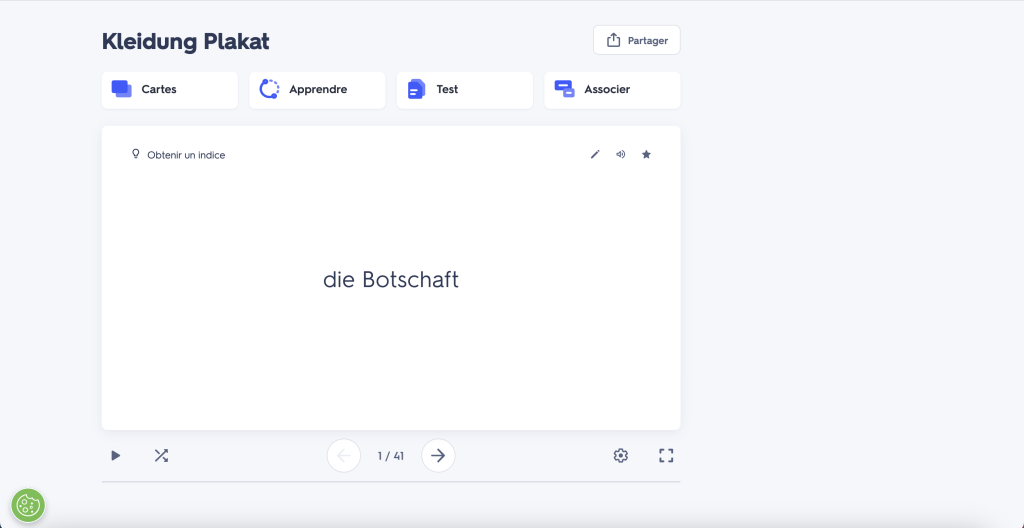
Step 1: open your list on Quizlet
Log in to your Quizlet account and open the set you want to bring over. Check that every card has a term and a definition.
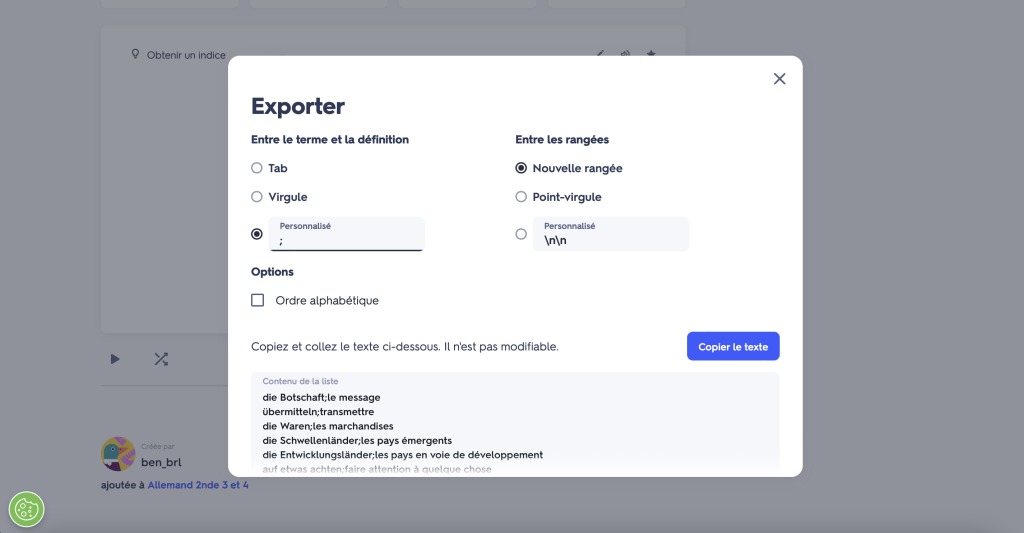
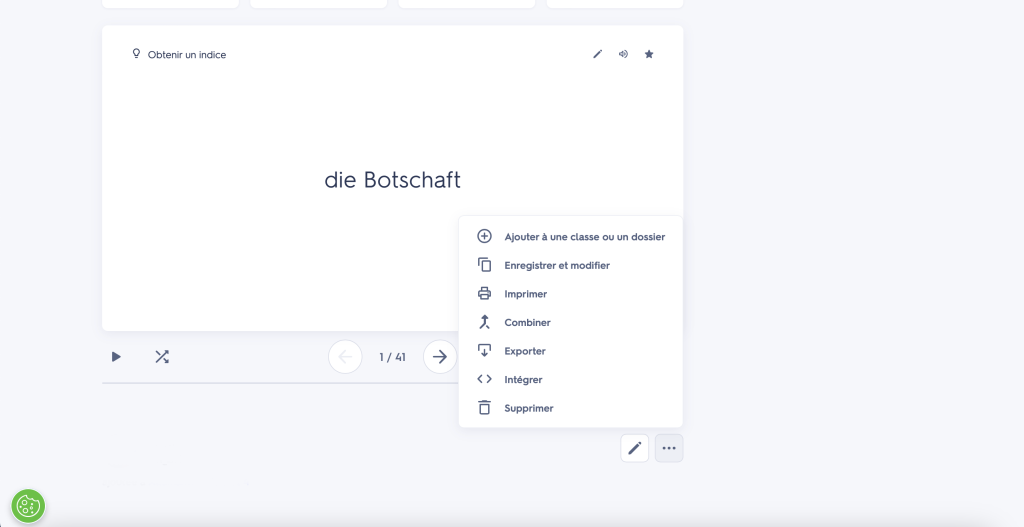
Step 2: export the list as text
- Click Export (in the set's menu).
- Choose Custom for the separator between term and definition.
- Enter a character, for example = or ;.
- Click Copy text.
Tip: choose a separator that doesn't appear anywhere in your cards. If a definition already contains a ";", use "=", and vice versa.
Step 3: paste the list into MemoCard.io
- Open MemoCard.io and log in.
- Choose Import a list.
- Paste the copied text.
- Enter the separator character chosen in step 2.
- Click Save.
Step 4: review
Your list appears with the others. You can review it right away with flashcards or in Learn mode, and MemoCard.io will schedule the next reviews.

Importing a list typed somewhere else
No need for Quizlet. If your list is in your notes, an email from your teacher or a document, put it in "one card per line" format:
- the library = la bibliothèque
- toujours = always
- storming of the Bastille = July 14, 1789
Then copy and paste it into Import a list, with "=" as the separator.
If the import doesn't work
- Some cards are split in two: the separator also appears in the text of a card. Change the separator.
- Everything ends up on a single card: check that there is a line break between each card.
- Some cards are missing: a line may not have a separator. Add it and try again.
Still stuck? Write to us at contact@memocard.io.
Why import rather than copy it out?
- Saves time: a 50-word list is imported in one minute.
- Fewer typos.
- All your lists in one place, with flashcards, Learn mode, scheduled reviews andPDF export.
Want to try it? MemoCard.io is free on iPhone and Android: create your first list in two minutes.
Frequently asked questions
Can I import from Anki or a spreadsheet?
Yes, as long as you get text with one card per line and a separator between the front and the back. From a spreadsheet, copy the two columns and replace the tab with "=" or ";" in a text editor before pasting.
Is importing free?
Yes, like the rest of the app.
Can I edit a list after importing it?
Yes, an imported list can be edited like any other list.